
Why file order matters on a busy print floor
When a file is saved in a hurry, the problem usually shows up later in a rush. Someone needs the latest logo, the correct cut path, or the approved size for a rerun and the folder is full of names like final, final 2, new final and use this one. That slows down production and can lead to the wrong artwork going to print.
For sign shops and print service providers, good file structure is not about being tidy for its own sake. It helps with quote turnaround, artwork approval, reprints and support. If a machine stops during load-shedding or a client calls back weeks later, the team should know exactly where the job lives and which version was used.
In Randburg and across Gauteng we often see shops with separate teams handling design, printing and cutting. Without a shared method, each person stores files differently. One designer keeps everything on the benchtop, another uses dated folders, and the operator only saves the RIP output. That creates delays when the job needs to be changed or repeated.
Set up one job folder that everybody understands
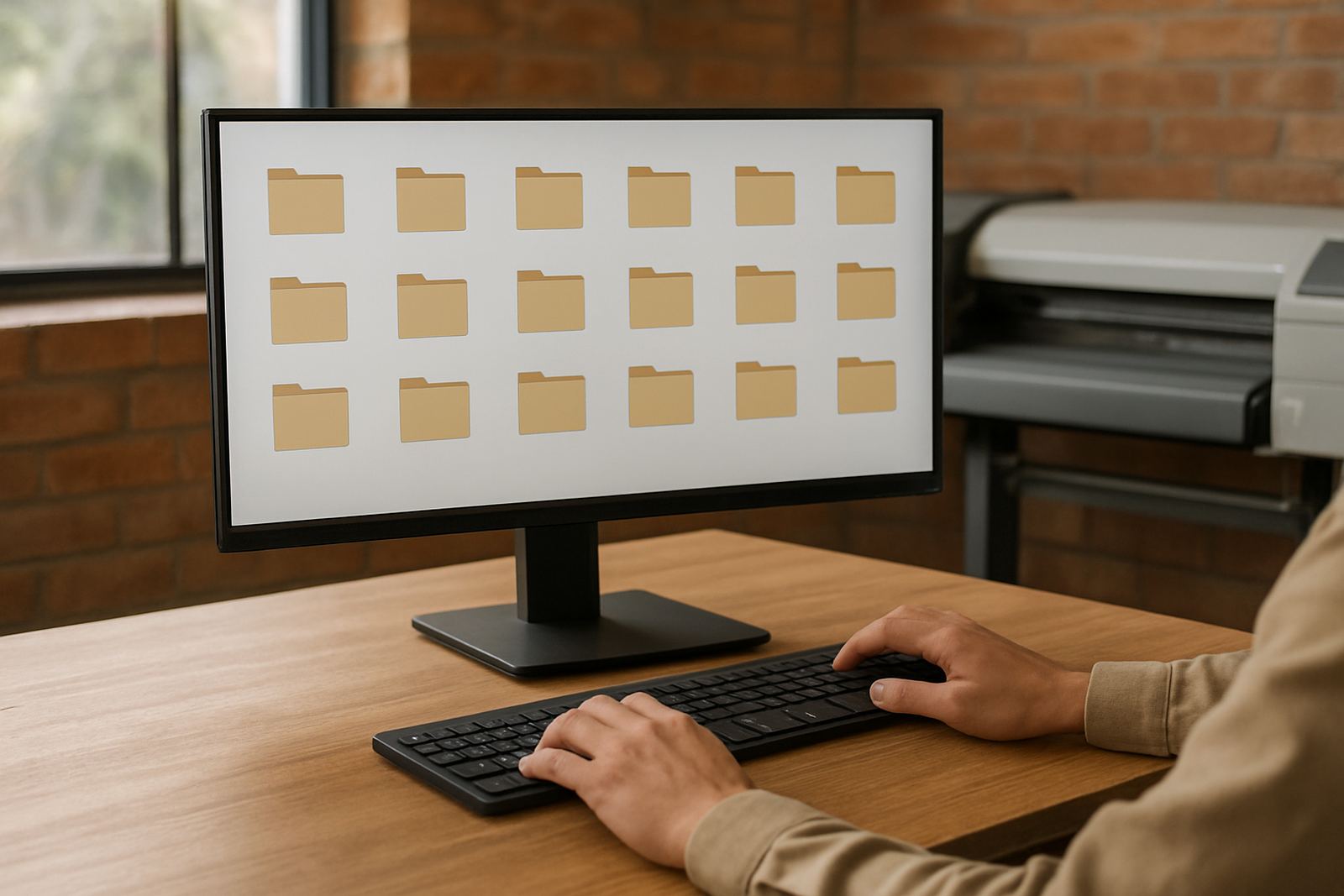
Start with one main folder for each client, then a subfolder for each job. Keep the structure simple enough that new staff can follow it on day one. If the shop has a lot of repeat work, use a system that groups by client first, then year, then job number or job name.
- Client name
- Year
- Job number or job name
- Artwork
- Proofs
- Print files
- Cutter files
- Final output
For example, a Pretoria vehicle branding job might be stored under Client Name, 2026, Vehicle Wrap, then separate folders for artwork, print ready files and cutter output. This helps the team track changes when the same client comes back six months later for another vehicle or a refreshed panel.
Keep the folder names short and plain. Long names get messy on network drives and can be awkward when staff work from different screens or remote support is needed. Use the same wording every time so nobody has to guess where things belong.
Name files so version control stays clear
Version control is where many shops lose time. A file name should tell the story at a glance: who it is for, what it is, what size it is and which version is current. That way nobody opens the wrong file when a client asks for a quick change on a busy afternoon.
A practical naming format could be client_job_size_version_date. Keep the date in a consistent format, such as 2026-04-23, so files sort properly. Use version numbers instead of words like final or approved. If a client changes one line of text, the version should change too.
- Use numbers for versions, for example v01, v02, v03
- Keep the same spelling for client names every time
- Include the size if the artwork is tied to a specific output
- Add a status tag such as proof, print or cutter
This also helps when staff leave or rotate between branches. A designer in Durban should be able to open a file prepared in Johannesburg and understand it without needing a long explanation. Clear file names save time, and they reduce mistakes in busy weeks when three or four jobs are moving at once.
Separate working files from output files
Do not mix editable artwork, exported print files and RIP output in the same place. Working files are for editing. Output files are for production. RIP queues and cut files should be kept where operators can find them quickly but not confuse them with source artwork.
A clean setup usually includes:
- Source artwork with layers and editable text
- Proof files for client approval
- Print ready files saved in the correct format
- Cutter files with the correct contour lines
- Archived output for reprints
This matters even more when a shop is managing multiple machines. A file prepared for a vinyl cutter is not the same as a file going into print. If the output folders are mixed, someone may send the wrong version to the wrong machine. That can waste media, ink and time, especially on larger jobs where material costs run high.
Build a repeat job process that saves time
Many South African sign shops rely on repeat work, from shop fronts and estate notices to fleet branding and directional signs. If the first job was well organised, the repeat should take far less time. The trick is to save enough information so the job can be recreated without starting from scratch.
Keep notes with the file set. Record the substrate, finished size, print profile, cutter settings, laminate choice and any special instructions. If the job was installed in a coastal town, note whether the material held up in humidity or strong sun. That kind of detail is useful when the same client asks for more panels later.
On a recent Durban branch job, a team needed to replace three faded panels before a weekend trade show. Because the artwork folder had the correct file names, approval proof and cutter output saved together, the shop could rerun the job quickly and avoid a last minute scramble. That kind of order makes a real difference when deadlines are tight and weather or power interruptions can interrupt production.
Make backups and access rules part of the system
A neat folder structure is only useful if the files are still there when needed. Back up artwork and production files regularly, and keep at least one copy away from the main production machine. If the office computer fails, the team should still be able to retrieve current jobs and archive work.
Set access levels carefully. New staff should be able to open the folders they need, but not overwrite master files by mistake. Training should cover where to save, what to rename and which files must never be changed. That is especially important in shops that work across Randburg, Midrand, Centurion and other branches where more than one person may touch the same job.
- Back up daily, not just at month end
- Test that backups can actually be restored
- Keep archived jobs separate from active jobs
- Review folder names when staff or workflow changes