
Arrange sticker sheets without manual spacing
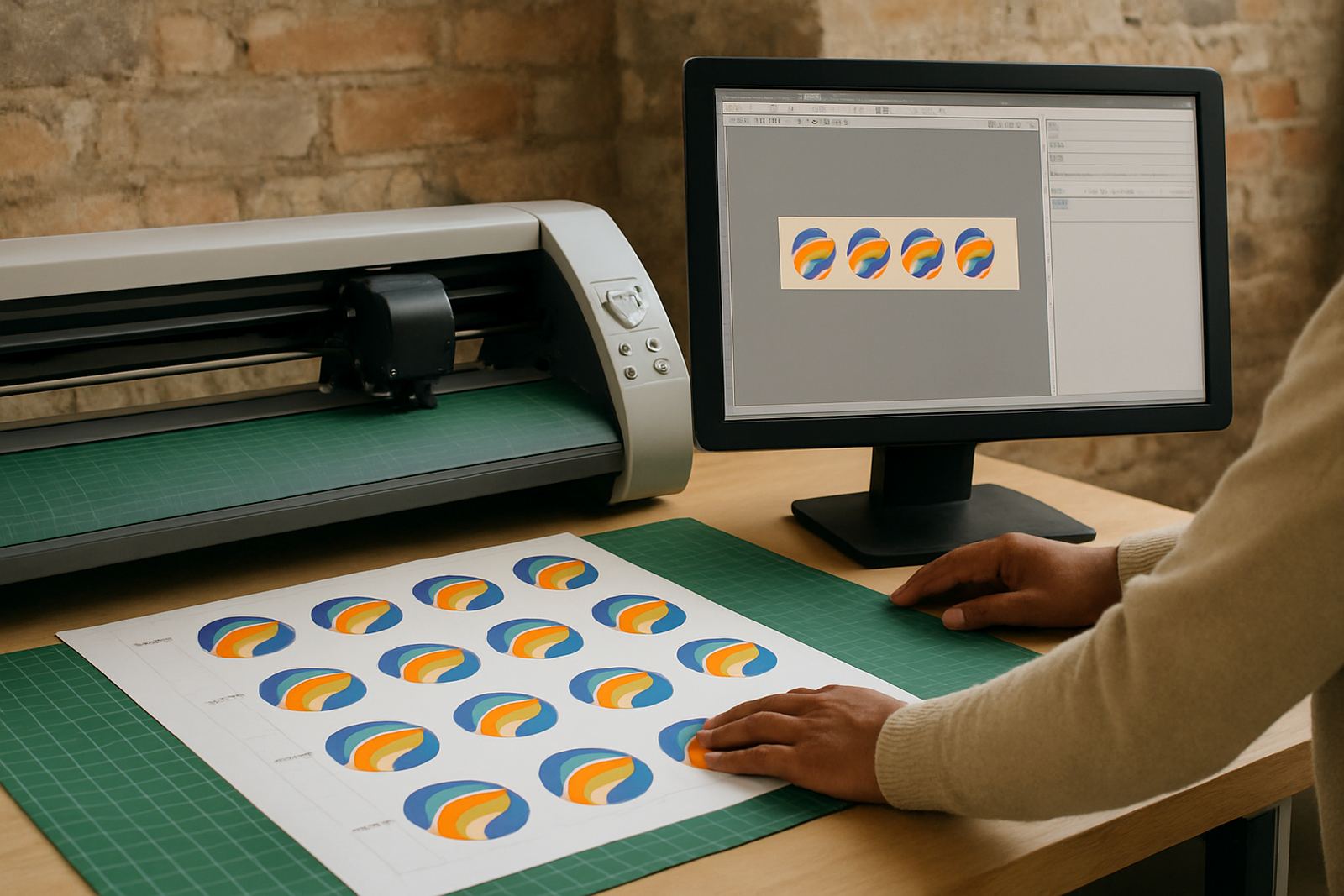
Sticker Sheet Tools is used to batch arrange repeated sticker artwork onto one or more sheets, with the settings you need for bleed, gaps and cut marks. It is handy when a job has 20 labels for a product range, 50 small decals for a school campaign, or a mixed sheet where every item must stay consistent for print and trimming.
The main value is speed and repeatability. Instead of placing each item by hand, you set the sheet size, the number of repeats, the margin and the cut line rules. That helps reduce waste and keeps output neat for vinyl cutters, digital presses and print-and-cut systems. For shops handling short runs in Johannesburg, Pretoria or Durban, that saves time on every changeover.
Bleed, spacing and cut mark options that suit real jobs
Different sticker jobs need different finishing rules. Some need extra bleed for laminate stretch, while others need more spacing for blade compensation or contour cutting. Sticker Sheet Tools lets you set those values per sheet so the output matches the material and the cutter setup.
- Bleed settings for printed stickers that will be trimmed after print
- Spacing between items for easier weeding and cutter tracking
- Crop marks or cut marks for manual guillotining or contour cutting
- Sheet margins for roll feed and flat bed handling
- Rotation controls for better material use on narrow media
For coastal work in Cape Town or Gqeberha, where humidity can affect adhesive and paper stock, a little extra spacing can help with cleaner handling. On shorter runs, a tighter sheet layout may suit better if the cutter is tracking well and the media is stable.
Sizes, sheet formats and production fit
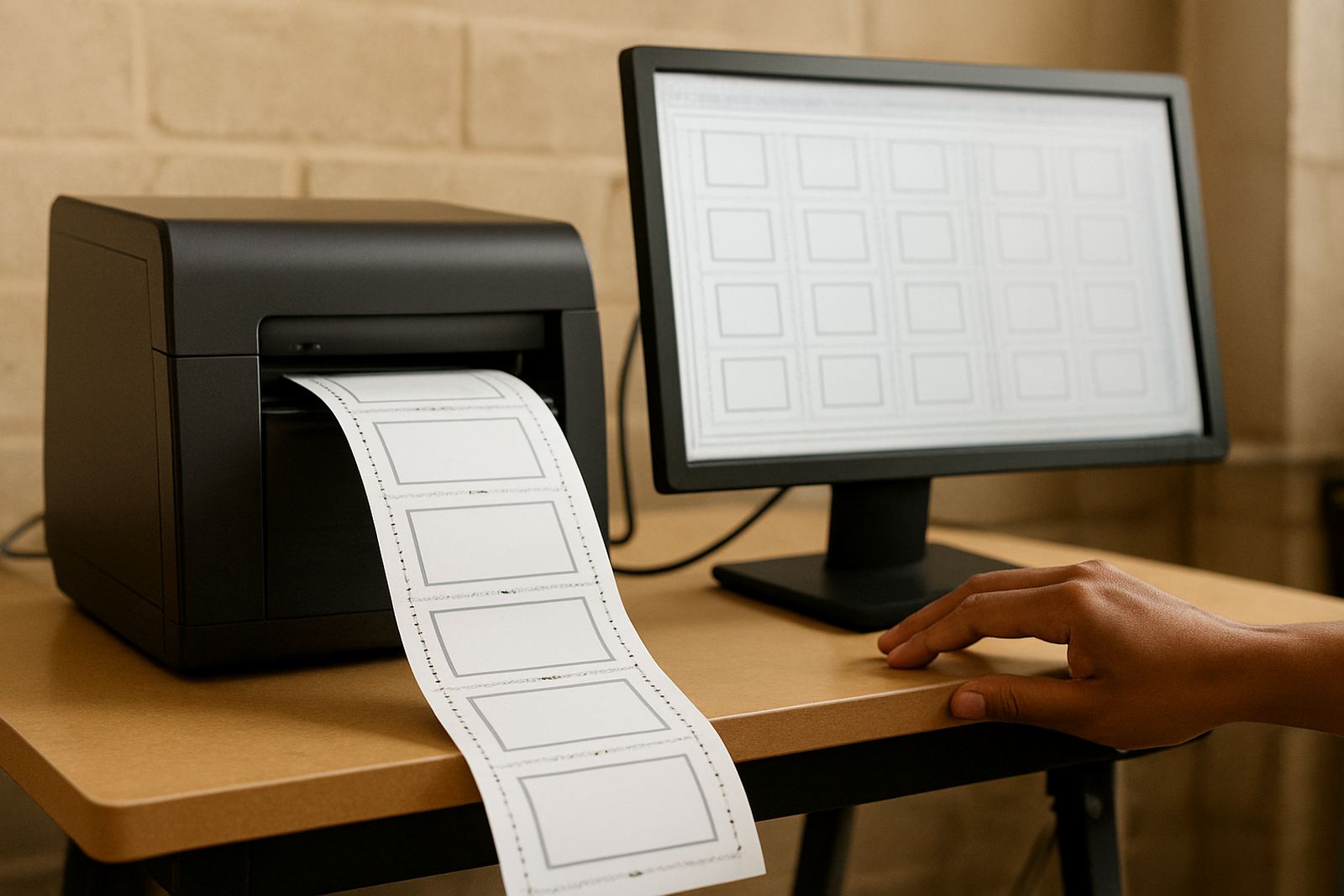
Sticker Sheet Tools is suitable for common sheet sizes used in South African print rooms, from A4 and A3 right through to larger custom boards for sign shops. It can also be set up for roll-fed output where the job is nested to suit the available media width, which is useful when the cutter or printer has a fixed working width.
It works well for:
- Label sheets for retail and packaging work
- Promotional sticker runs for events and campaigns
- School, club and municipal marking jobs
- Contour-cut sticker batches for vinyl cutters
- Mixed artwork sheets where several designs must print together
If your shop runs a lot of short batches, the tool helps standardise how those sheets are built. That matters when staff rotate between design, print and cutting, because the settings stay predictable and the output is easier to repeat the next day.
Installation, workstation needs and day-to-day setup
Sticker Sheet Tools is software, so the main requirement is a suitable computer with enough memory and storage for your artwork files. No gas connection is needed, and the power requirement is simply a stable workstation with backup power if your area is affected by load-shedding. In Randburg, Midrand and Centurion, many sign shops keep their design station on a UPS so jobs do not get interrupted mid-layout.
Installation is normally done with licence activation and setup checks for your cutter or print workflow. If you are linking the sheet output to a RIP or a contour-cut process, the registration marks and page setup should be checked at the same time. A clean installation can prevent mismatched page sizes, clipped marks and stray offsets. That is one of those small things that saves a lot of reruns.
Care, servicing and keeping the workflow tidy
The software itself does not need mechanical servicing, but your workflow does need routine care. Keep your cutter blades sharp, check pinch rollers, and make sure your media profiles match the stock you are using. If the mark reader is dirty or the cutter is not tracking well, even well arranged sheets can finish badly.
Good practice includes:
- Back up your sheet presets and common layouts
- Review blade offset and cutting pressure after a media change
- Clean dust from the cutter and workstation area
- Test one sheet before running a full batch
- Check that laminate and vinyl are compatible with the intended finish
For shops doing weekly production, a short check before the first job of the day can reduce scrap and keep the cut path accurate. If you support a team of new operators, this also makes handover simpler.
What to check before you order
Before ordering Sticker Sheet Tools, confirm the media sizes you use most often, the cutter model or print-and-cut method, and whether your jobs need bleed, kiss-cut or full-cut output. It also helps to know if you need basic sheet building or a more structured setup with preset layouts for different clients.
Have these details ready:
- Typical sheet size and maximum media width
- Whether you print first or cut first
- How many repeats you place on a normal run
- Whether you need contour cut marks
- Who will be using the software every day
- Any load-shedding backup or workstation limits
If your team in Johannesburg, Pretoria, Durban, Cape Town or Gqeberha needs help choosing the right setup, it is easier when we know your current cutter, your media and the kind of sticker work you do most often. Then the sheet settings can be matched to the job instead of forcing the job to fit the settings.
Training, support and rollout for busy sign shops
Sticker Sheet Tools is most useful when the operator knows how to build a sheet quickly and repeat it without errors. That is why training matters. We support South African sign makers, graphic designers and print service providers from Randburg and across the country with installation, licence activation, remote support, onsite training and workflow setup.
Our team can assist with new staff induction, cutter setup help, RIP queue optimising and colour management where the sticker sheet output forms part of a wider production line. If you are rolling the tool out to more than one workstation, it helps to standardise the sheet templates from the start. That keeps the job moving and avoids small variations between operators.
Key facts
| Product type | Software tool for arranging sticker sheets with bleed, spacing and cut marks |
|---|---|
| Typical use | Batch layout for labels, decals, promo stickers and contour-cut jobs |
| Sheet support | A4, A3 and custom sheet sizes, plus roll-fed media setups |
| Cut workflow | Suitable for manual trim, kiss-cut and contour-cut output |
| Setup requirement | Installed on a compatible workstation with licence activation |
| Power and utilities | No gas needed; stable mains power and backup power recommended for load-shedding |