
1. Check the old PC before you unplug anything
Before you touch the replacement machine, spend a few minutes on the old workstation and confirm what must be carried over. In many sign shops the software itself is only part of the job. You may also have cutter presets, hot folders, ICC or colour profiles, RIP queues, job history and custom templates that your team uses every day.
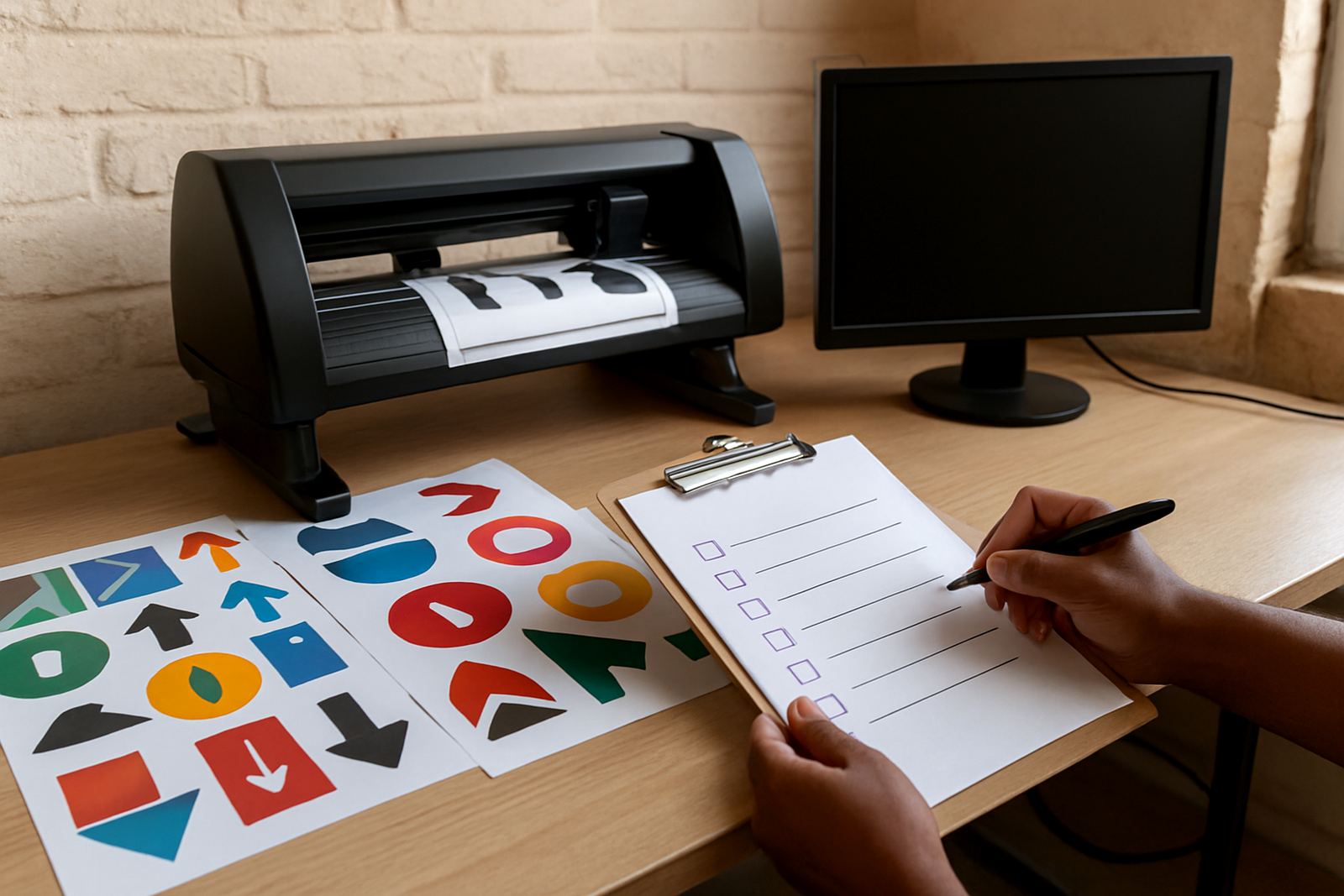
It helps to make a simple list first. That way no one has to guess later when a vinyl cutter is waiting and a customer wants the job by lunch. If the old PC still starts up, do a final check of the software version, licence status and any linked devices such as a cutter, printer or scanner. If the machine is failing, tell us early so we can help you recover what is still available.
- Confirm the software version and licence type
- List connected machines and USB devices
- Note where files, profiles and templates are stored
- Check if any custom media settings or cut settings were saved locally
2. Back up the right files, not just the job folder
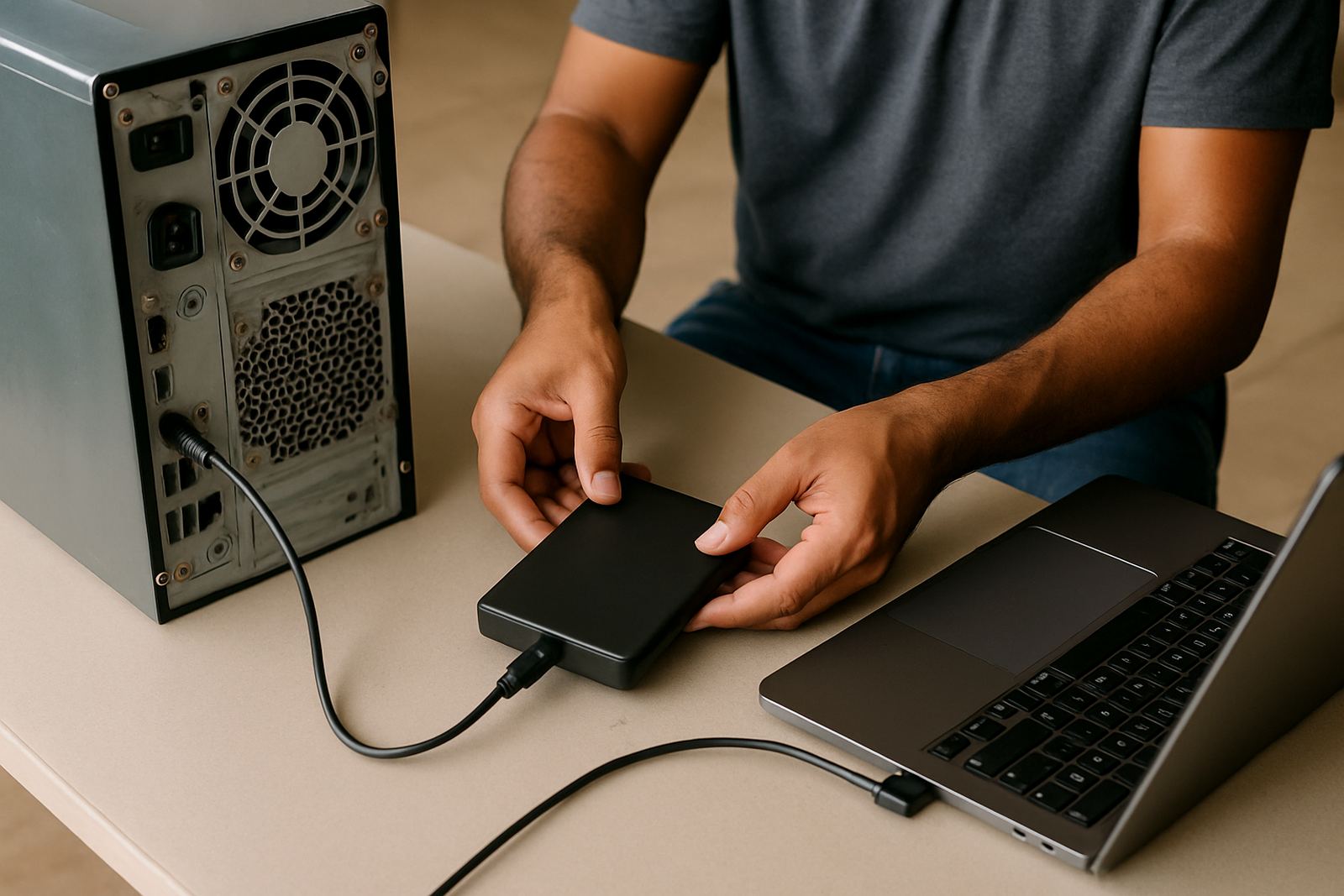
A replacement PC move works better when you back up the whole workflow, not only the artwork. Copy customer artwork folders, RIP presets, queue definitions, output folders and any scripts or automation files the team depends on. If colour matching matters, include your reference charts, profile notes and any printer-specific settings used for reprints.
For teams in Johannesburg, Durban or Cape Town, this is also the time to think about load-shedding and unstable power. A sudden shutdown can leave files half-written or settings corrupted, so if the old PC has been running on a battery backup, close the software properly before copying anything. Keep the backup on an external drive or a shared folder that you can test on another machine. Do not rely on one copy only. Thats where delays usually start.
- Artwork folders and archived jobs
- RIP queues and output presets
- Colour profiles and media settings
- Cut files, weed lines and production templates
- Notes for special jobs, like reflective vinyl or short-run labels
3. Move the licence and activate the new workstation
Once the backup is safe, the next step is licence transfer and activation on the new PC. Some installations need the licence released from the old machine first, while others can be re-authorised after the new hardware details are captured. If you have multiple seats or a support plan, check which user or workstation is assigned to each licence before you start.
Keep the old PC available until the new one is confirmed working. That avoids a situation where both machines are offline and the team cannot output a queue. If the old workstation is dead, we can guide you through the activation process and help with proof details, serials or account checks through the enquiry form on our contact page. For businesses in Randburg, Pretoria, Midrand or Centurion, onsite support can also be arranged where needed.
- Have your purchase or subscription details ready
- Confirm which PC will be the main production machine
- Release the old activation if the licence system requires it
- Test that the software opens cleanly on the new hardware
4. Rebuild the cutter and RIP setup carefully
The new PC should behave like the old one before it goes into full production. That means reconnecting the cutter, printer or plotter, then rebuilding the queues and device settings in the correct order. Check COM ports, USB connections, cutter offset, blade pressure and any media-specific cut speeds. A tiny change here can waste metres of vinyl.
For print service providers, the RIP queue must be checked for page size, nesting, mirror settings, spot colour handling and output resolution. If the team works with translucent, cast or matte vinyl, set up the most-used media first. Coastal humidity in Durban and Gqeberha can also affect handling and drying times, so keep an eye on storage and output routines. A queue that looked fine on the old PC may need a small tune-up now, especially if the new machine has different drivers or screen scaling.
- Reconnect each device one at a time
- Test a simple cut and a small print job
- Confirm media size, orientation and scaling
- Check contour cut and registration mark settings
- Save working presets after every successful test
5. Restore colour settings and production files
Colour management is where many changeovers get messy. When a team swaps PCs, they often copy the artwork but forget the colour workflow that made previous jobs consistent. Restore your profiles, calibration notes, swatch files and any printer-specific correction files. If you use a standard for corporate logos or repeat signage, make sure the new workstation uses the same output path and soft proof settings as the old one.
It also helps to check font access, linked images and file paths. A file that opened perfectly on the old machine can show missing links on the new one if the folder structure changed. In a busy shop this is a common issue and it usually shows up when someone is already on the phone with a client. Save yourself the scramble by opening a few old jobs and checking them against the original output. If something looks off, adjust it before production starts again.
Keep a short recovery note for the team, especially if more than one person uses the PC. Write down where presets are stored, which folders are safe to clean out, and which settings must never be reset. This makes future upgrades much easier too.
6. Final checks before the new PC goes live
Before you put the replacement workstation into daily use, run a proper handover test. Do one print, one cut and one re-open of an older job. Check that the output is clean, the queue is stable and the file opens without missing elements. If the machine is for a new staff member, include a short induction so they know where to save jobs and how to avoid overwriting shared files.
A good move ends with less guesswork, not more. Once everything is working, record the settings, back up the new installation and keep a copy in a safe place. That way the next upgrade is quicker and less stressful. If you need support with licence activation, workflow setup, cutter setup help or onsite training, our team in Randburg can assist across Johannesburg, Pretoria, Durban, Cape Town and Gqeberha.
- Run a test print and test cut
- Confirm colour, sizing and queue behaviour
- Save a fresh backup of the new setup
- Document anything unusual for future upgrades