What New PC Migration Covers
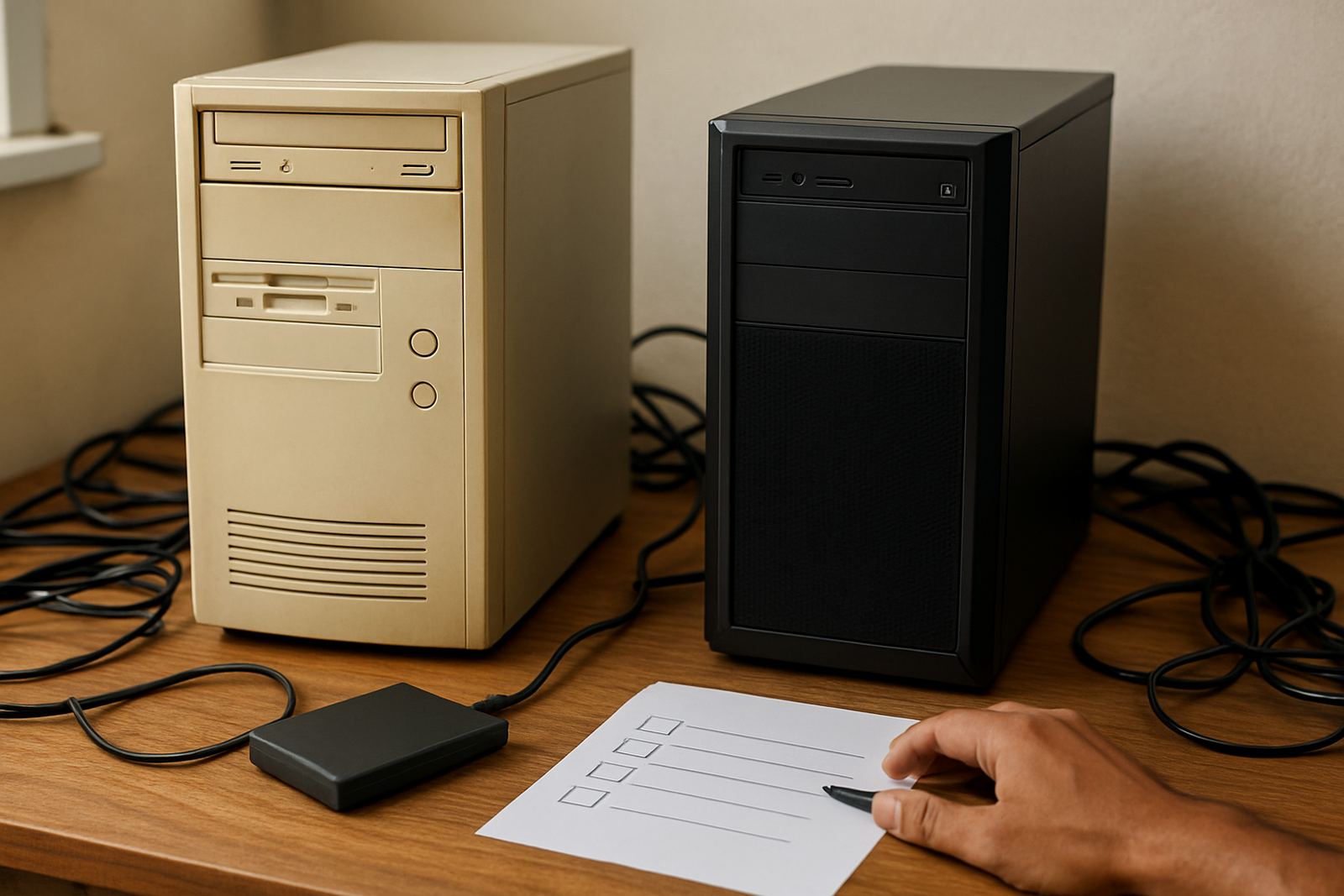
This service is for sign shops, print rooms and production teams that are replacing a computer and need the working setup copied across properly. We move the parts that matter in daily use: activated licences, user settings, hot folders, media presets, cutting profiles, queue settings and colour workflow preferences. If the old machine is still working, we use it as the source so the new PC starts with a familiar layout and the same production habits.
It suits teams in Randburg, Johannesburg, Pretoria, Midrand and Centurion that cannot afford a long stop while someone learns a fresh setup. It also helps coastal shops in Durban, Cape Town and Gqeberha where humidity, dust and power interruptions can shorten PC life and force an early replacement.
Options For Single PCs Or Full Shop Moves
Not every migration is the same. Some customers only need one RIP station moved, while others are shifting a whole production setup with multiple user profiles and output devices. We can migrate a basic sign making workstation or a more detailed environment with cutter queues, colour settings and print defaults. If you are changing from an older PC to a higher spec unit, we also help decide what should be kept, cleaned up or rebuilt rather than copied blindly.
- Single workstation migration for one operator
- Multi-user setup for shared shop computers
- RIP software transfer with printer and cutter presets
- Colour workflow setup for proofing and repeat jobs
- Training add-on for new staff or changed menus
If the old computer is unstable, we can work from a recent backup, but the best results come from having the source machine available and powered on during the transfer.
Where It Suits In Real Production
This service is a good fit for print and signage businesses that rely on repeatable output. It helps when a business is upgrading from an ageing Windows machine, replacing a failed hard drive, or standardising several stations after new staff join. It is also useful when a shop has too many old files, broken shortcuts or duplicate settings and wants a cleaner working system before the next production run.
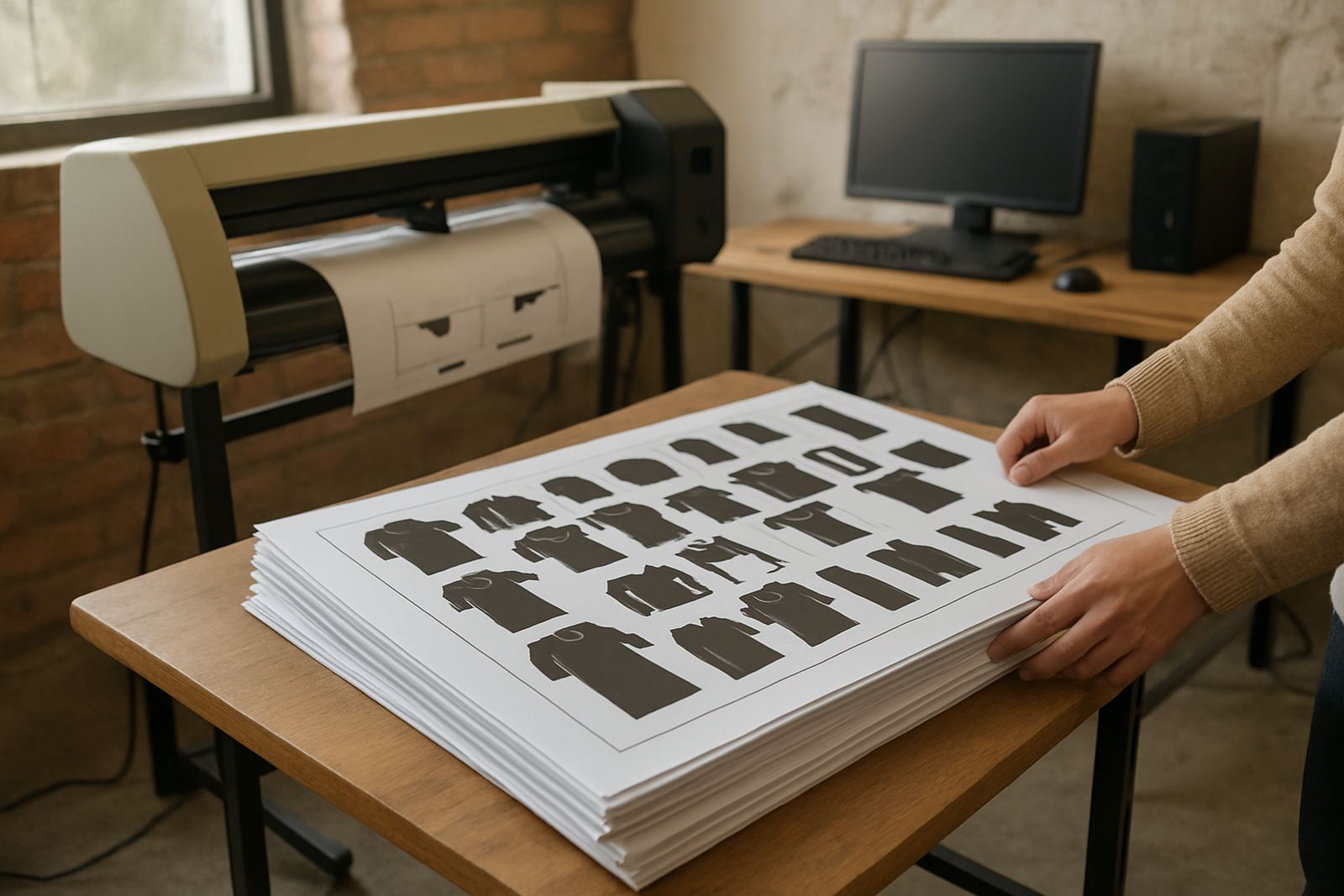
Typical use cases include vinyl cutting, print and cut workflows, contour cutting, nesting, queue management and production scheduling. If your operator knows the old setup well, migration keeps that workflow intact instead of forcing a total reset mid week.
- Vinyl cutters and routing workflows
- RIP stations for digital print output
- Colour matching and media libraries
- Busy shops with limited downtime windows
Installation Requirements And Site Conditions
A New PC Migration does not need gas, but it does need a clean workspace, stable mains power and a reliable network connection if licences or updates must be checked online. In areas where load shedding is common, we strongly recommend a working UPS on both the old and new computers so the transfer is not interrupted halfway through. If the new PC must connect to a printer, cutter or network share, have the correct cables ready and make sure the ports are available.
Before the appointment, close active jobs and save current production files. If the old machine has very slow storage or a failing drive, advise us in advance because copying can take longer and may require a more careful approach. For onsite visits in Randburg, Johannesburg or Pretoria, we usually need the workstation, monitor, keyboard, mouse and access to the production folder structure. For remote support, the new PC must already be online and reachable.
Care, Servicing And Ongoing Support
Once the migration is complete, the new computer should be treated as a production tool, not just a general office PC. Keep it free of dust, especially in shops near road traffic or where paper and vinyl trimming creates fine debris. Coastal humidity can affect connectors and storage over time, so the unit should be kept off the floor and away from open windows or wash-down areas.
We also recommend checking the migration after the first few jobs. Look at output sizes, colour consistency, cutter paths and queue order. If anything has shifted, it is far easier to fix in the first week than after a month of production. Annual support planning can include a review of the new setup, plus training for new staff who will use it.
What To Check Before You Order
To keep the move smooth, have the following details ready when you send your enquiry through the contact page. Complete handover notes let us plan the transfer and reduce down time.
- Software name and current licence status
- Old PC and new PC operating system details
- Printer, cutter or RIP device models in use
- Whether settings, presets and templates must be copied
- Any known faults on the old machine
- Whether you need onsite work or remote support
If you are also upgrading cutters, print drivers or colour workflow, say so early. That lets us plan the order of work and avoid a second visit for something that could have been handled in the same session.
How The Migration Is Carried Out
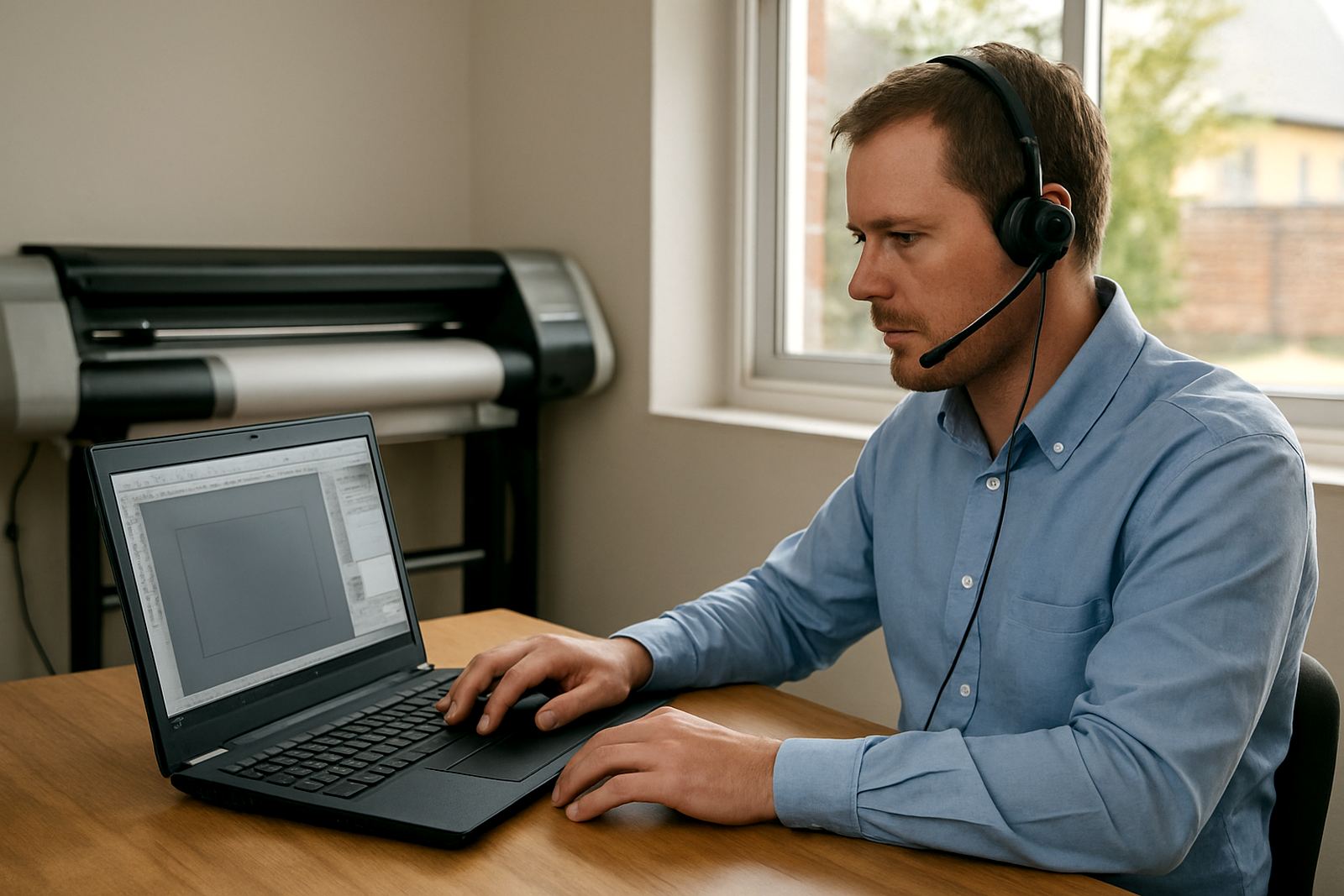
We start by checking what must be moved, what can be rebuilt, and what should be left behind. After that, we prepare the new machine, transfer the required settings and test the key jobs that your team uses every day. Where needed, we help with licence activation, cutter setup, RIP queue checks and first-job verification so the operator can get back to production with confidence.
For shops in Durban, Cape Town and Gqeberha, this process is especially useful when downtime and travel costs have to be kept tight. For Gauteng customers, we can combine migration with training, support or installation planning if the new computer is part of a wider upgrade. The aim is simple: same work, new PC, fewer surprises.
Key facts
| Service type | Migration of licences, settings and production presets onto a replacement computer |
|---|---|
| Typical use | Sign shops, print service providers, vinyl cutters and RIP workstations |
| Delivery options | Remote support, onsite installation, or mixed support depending on site access |
| Power needs | Stable mains power and a UPS recommended during transfer and first testing |
| Connectivity needs | Internet for licence checks, updates or remote support where required |
| Best for | Replacement PCs, failed drives, workstation upgrades and multi-user production setups |